How Smart Screen Settings Can Help You Minimize Digital Eye Strain
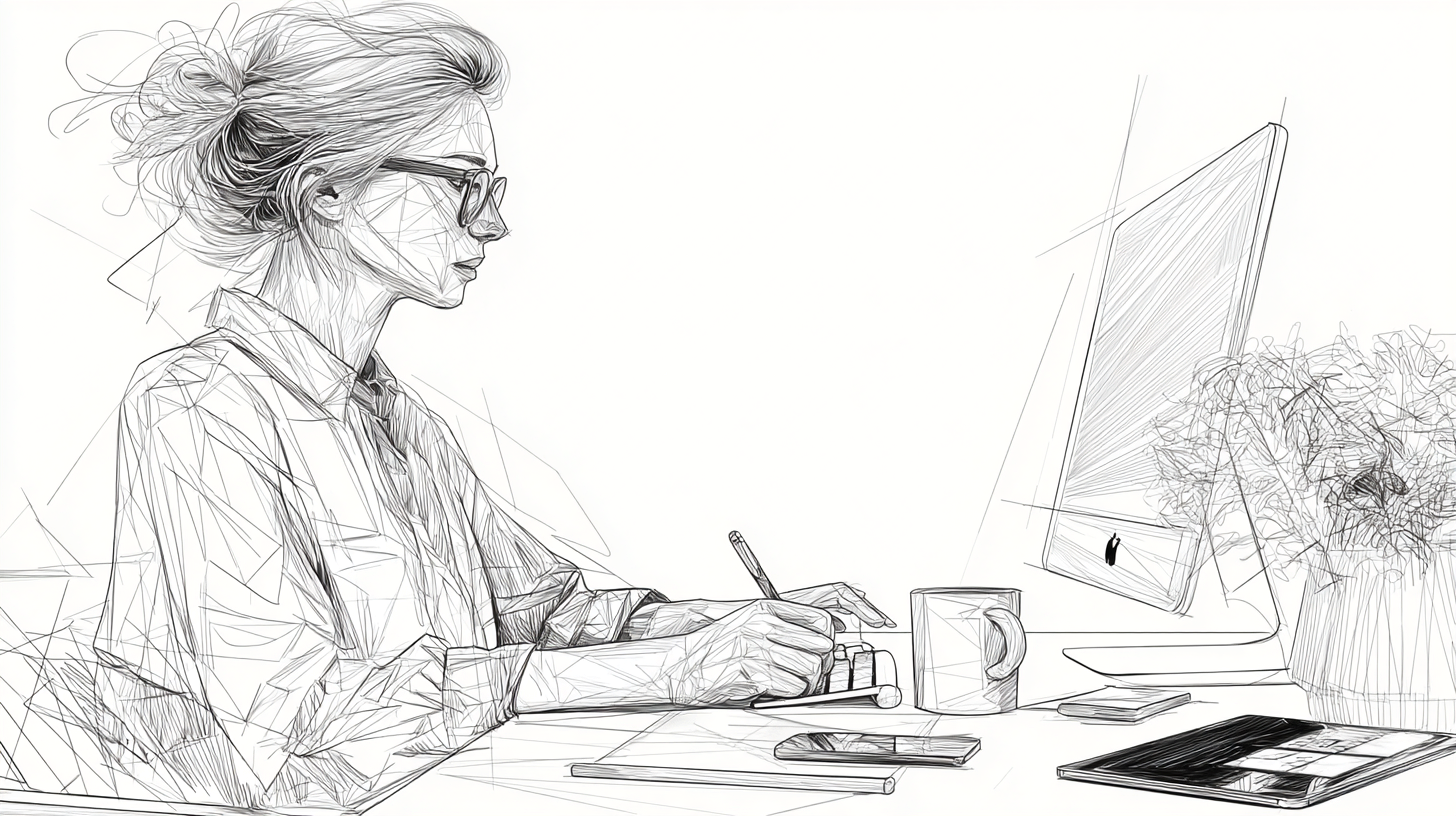
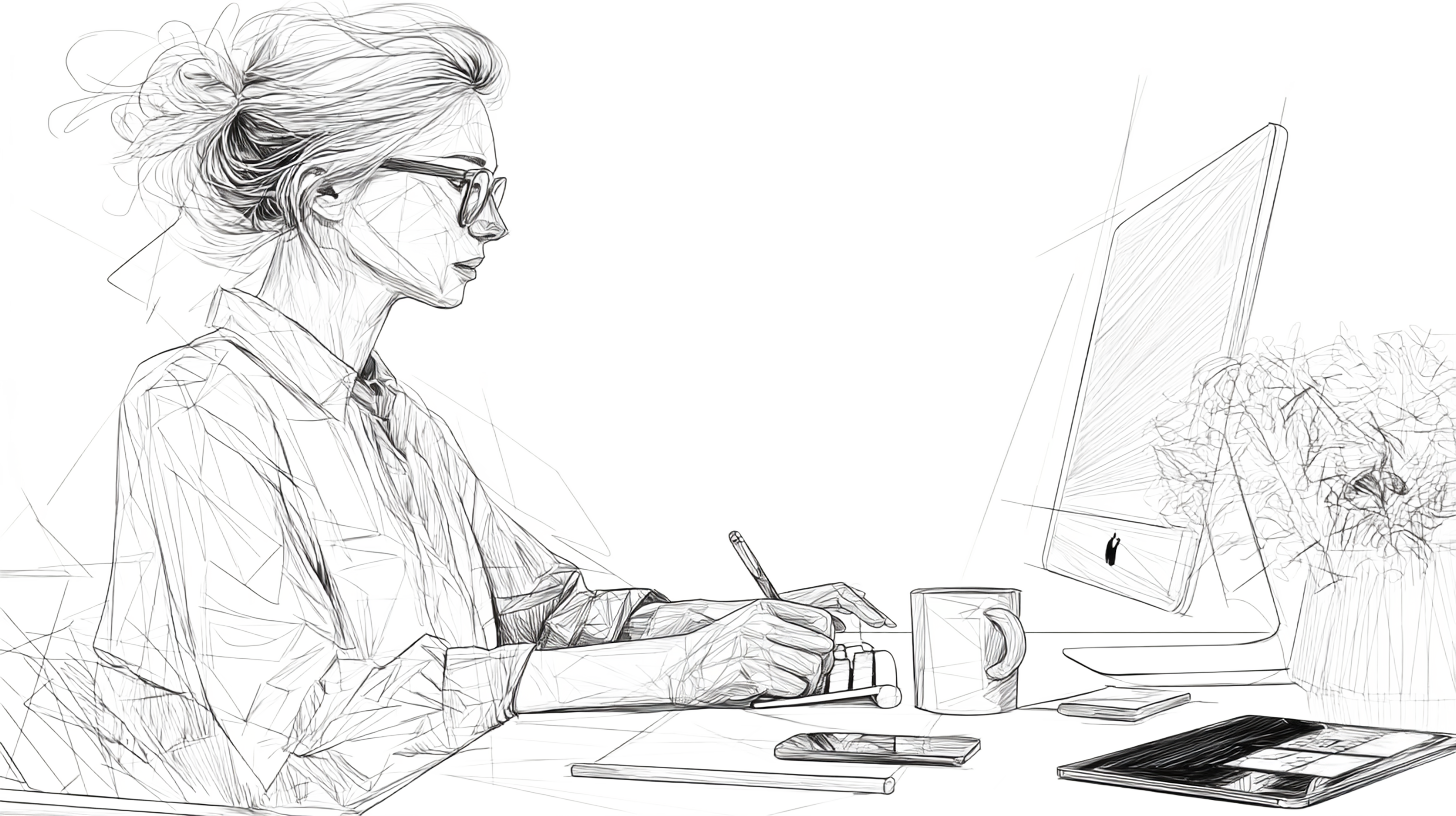
For Olivia, a marketing specialist, screens were everything. Dual monitors for work, a tablet for brainstorming, her phone for catching up, and the occasional Netflix binge to unwind. It was a digital life that powered her productivity and creativity.
But lately, her eyes felt like they were staging a protest. The symptoms were familiar: dry eyes by midday and a dull ache that seemed to build with every hour of screen time. Olivia bought a pair of computer glasses, invested in an ergonomic chair, and even placed a yellow light filter over her monitor. Yet, the discomfort persisted.
What Olivia and many others don't realize is that while these solutions can offer some relief, they often miss the core issue: the way your screen is set up can make or break your eye comfort.
Buying a monitor with eye-friendly features and adjusting its settings to the right contrast, brightness, and font size can be far more effective in shielding your eyes from the harmful effects of prolonged screen time.
What is the Optimal Screen Brightness for Your Eyes?
A screen that's much brighter than the surrounding environment forces your eyes to constantly adapt to a harsh contrast. This continuous adjustment is a major source of eye fatigue and headaches.(1) Conversely, a screen that's too dim in a bright room forces your pupils to work overtime, trying to make out text on a dark display.(2)
The "Goldilocks Rule" of brightness is simple: your screen should be roughly as bright as the ambient light in the room. This balanced brightness minimizes the work your eyes have to do. For dark rooms, a reddish, warmer color works best, while for well-lit rooms blueish color works better.
How to Get Your Screen Brightness Right for Any Environment
When using a screen in a bright room or outdoors, it's important to understand the difference between two key metrics: nits and lux. Getting this balance right can make the difference between a clear, comfortable viewing experience and a frustrating, washed-out display.
Nits (cd/m²) measures a screen's luminance, or the maximum amount of light it can emit. While 120-150 nits might be enough for a dimly lit office, you'll need a display with 350+ nits to handle a brightly lit room. For working outdoors in direct sunlight, a screen with 1,000 nits or more is often necessary to stay visible.
Lux (lm/m²)** **measures illuminance, which is the amount of light in your environment that falls on a surface. It's the measure of ambient light. For optimal eye comfort, your screen's brightness (nits) should be adjusted to match the surrounding ambient light (lux). For example, a bright office might have an illuminance of 300-500 lux, while direct sunlight can be over 10,000 lux.

Blue Light v/s Yellow Light
The Problem with Blue Light
Have you ever wondered why staring at a screen for too long can make your eyes feel tired? A major reason is blue light. Most LED screens emit it. Blue light is a high-energy visible light, which is naturally emitted by the sun and is also present in the device screens. While it plays a role in regulating our sleep-wake cycle, overexposure from digital screens can contribute to digital eye strain, disrupt sleep patterns, and potentially lead to long-term retinal damage.(3)(4)
To combat the effects of blue light, many monitors and devices offer built-in filters.
Low Blue Light Filters
These are designed to specifically reduce the amount of blue light a screen emits. Most modern monitors come with customizations like TÜV Rheinland Low Blue Light, which is designed to minimize eye strain. If your current device doesn't have this hardware, you can use software filters like Night Shift on macOS or Night Light on Windows.
Yellow Light Filters
Also known as a "warm light filter," this method doesn't just block blue light; it shifts the screen's entire color temperature. By making the display appear warmer and more yellow, it reduces the harshness of the screen and creates a pleasant viewing experience, especially in low-light environments. Many devices have a built-in Night Mode or Eye Comfort setting that accomplishes this with a single tap.
Font Size for Better Focus
When the font on your screen is too small, the ciliary muscles in your eyes have to contract and hold a tight focus for extended periods, which eventually leads to muscle fatigue and headaches.(1) Use your operating system's display scaling or the zoom feature in your browser to make text large and comfortable to read. This allows your eyes to focus with less effort and helps reduce stress throughout the day.
Contrast for Clearer Reading
Have you ever tried to read a book with faint text on a light-colored page? It’s a strain on your eyes. The same principle applies to your screen. A higher contrast setting makes the text stand out more from the background, making it easier for your eyes to distinguish characters.
Research suggests that increasing the contrast between text and background can significantly reduce the effort your eyes have to exert while reading.(5)(6) A good starting point is to set your contrast ratio to at least 10:1.(7) The ideal setting is often a matter of personal preference, but generally, a darker font on a light background is recommended for text-heavy work.
What monitor settings should you change for better eye comfort?
Try these simple adjustments to optimize your display.
-
Brightness: Adjust your monitor's brightness (in nits) to match the ambient lighting of your room (lux). For a typical indoor office environment with a recommended illuminance of 300-500 lux, a screen brightness of 200-300 nits is often sufficient.
-
Contrast: Set your contrast ratio so that text is sharp and easy to read. A higher contrast (e.g., 10:1 or more) is generally better.
-
Font Size: On a high-resolution 4K monitor, use your operating system's display settings to scale the resolution (e.g., to a 1440p-equivalent HiDPI setting). This makes text and icons larger without losing sharpness.
-
Font Smoothing: On macOS, enable font smoothing via the Terminal app for non-Apple displays to prevent blurry text.
-
Low Blue Light: Enable your monitor's "Low Blue Light" mode, especially in the evening, to reduce eye strain and improve sleep quality.
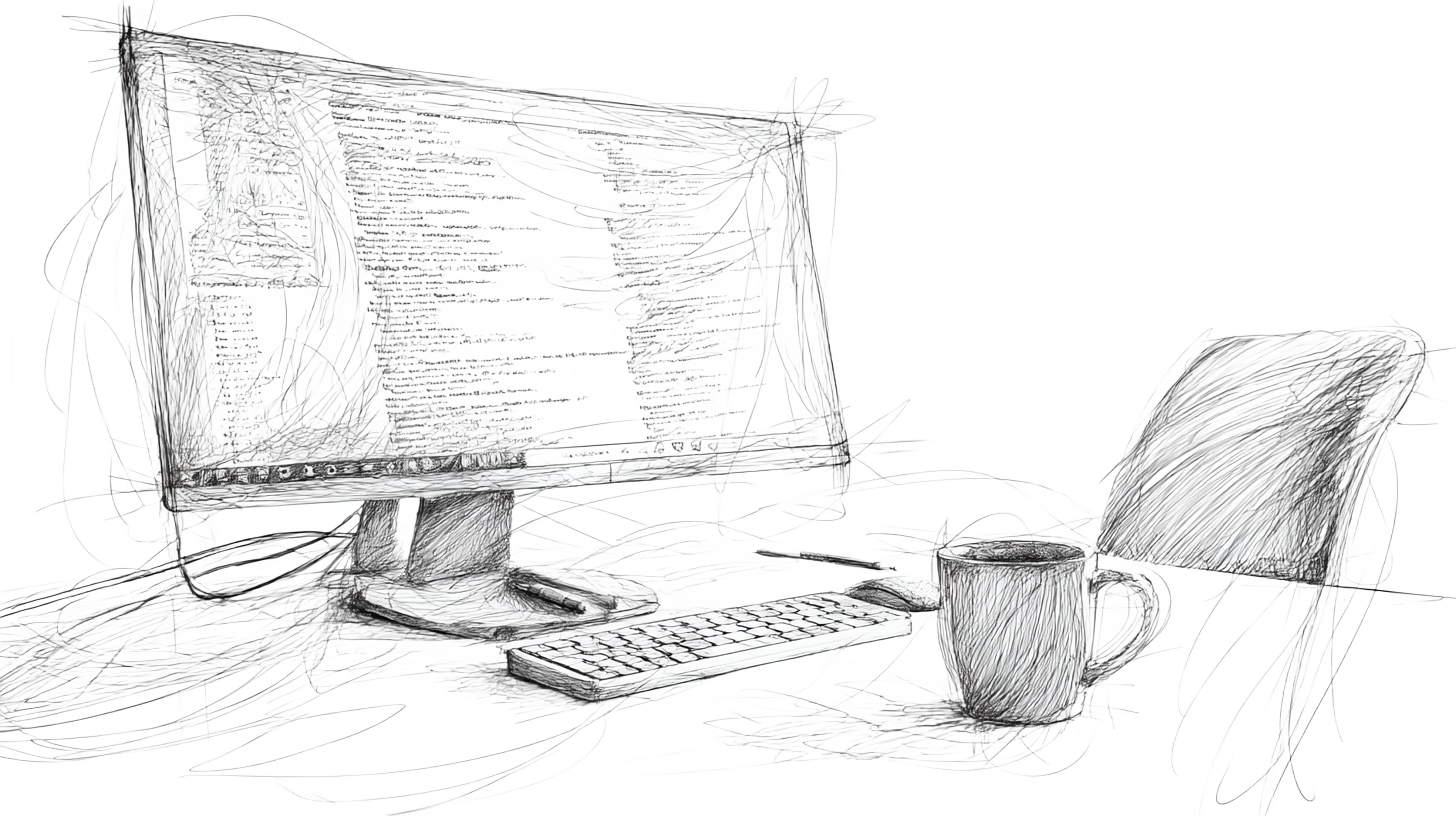
If tweaking your monitor's settings hasn't solved the problem, the issue likely lies with the hardware itself. Beyond simple adjustments, the quality of your display also plays a significant role in reducing eye strain. When you're ready to upgrade, here are the key display characteristics you should be aware of.
Pixel Density: The Key to a Sharp, Eye-Friendly Display
The sharpness of a screen is measured by its Pixel Density (PPI), or the number of pixels per inch. A higher PPI means the monitor can display a sharper, more detailed image, which is crucial for visual comfort.
A lower-resolution screen can make text and images appear jagged or blurry, forcing your eyes to work harder to focus. This can lead to eye strain, blurred vision, and even headaches over time, especially during long work sessions.(1)
To ensure visual comfort, aim for a display with at least 100 PPI, though a pixel density of 200+ PPI is excellent. For example, Apple's "Retina" displays achieve their renowned crispness by having a high pixel density of over 220 PPI, which makes individual pixels invisible at a normal viewing distance. While "Retina" is a brand name, the concept is what matters: a high PPI display is a must-have for eye health.
Research has shown that displays with a pixel density below 100 PPI tend to cause more visual fatigue during long sessions.(1)
How Refresh Rate Shapes Your Screen Experience
The refresh rate is the number of times per second your screen refreshes its image. While most standard monitors are 60Hz, a lower rate can cause a subtle, imperceptible flicker that still contributes to eye strain (8). Higher refresh rates (90Hz or 120Hz) create a smoother, more stable image, which can feel noticeably more comfortable during prolonged use or when scrolling.
Choose a monitor with a TÜV Rheinland flicker-free certification. It guarantees that the display uses technology to eliminate screen flickering, providing a stable and comfortable viewing experience.
The Monitor Buying Guide: Defining Your Minimum Specifications
Looking to upgrade your monitor? This buying guide will help you define the minimum specifications you need to prioritize your eye health.
Spec
Minimum
Ideal for Professionals
Resolution
2560x1440 (2K)
3840x2160 (4K/UHD)
Size
24-27”
27-32”
Pixel Density (PPI)
110+ PPI
140+ PPI
Brightness
300+ nits
350+ nits, flicker-free
Other Tech
TUV Low Blue Light, Anti-glare coating
TUV certification, Anti-glare coating
For most users, a high-quality 27-inch 4K IPS monitor is an excellent investment. It provides a "Retina-like" experience with a PPI well above the minimum recommendation, giving you 90-95% of the visual comfort of an expensive Retina display for a fraction of the cost.
Final Thoughts: You're In Control
Eye health isn't about avoiding screens; it's about mastering your screen environment. By taking control of your monitor's settings and making informed choices when buying a new one, you can create a work setup that is both comfortable and sustainable for the long term.
Start today by fine-tuning elements like brightness, color temperature, sharpness, and font size to transform your workspace into an eye-friendly zone.
References
(1): Kaur, K., Gurnani, B., Nayak, S., Deori, N., Kaur, S., Jethani, J., Singh, D., Agarkar, S., Hussaindeen, J. R., Sukhija, J., & Mishra, D. (2022). Digital Eye Strain- A Comprehensive Review. Journal of Clinical and Diagnostic Research, 16(7), 1-5. https://www.ncbi.nlm.nih.gov/pmc/articles/PMC9434525/
(2): Tian, P., Xu, G., Han, C., Zheng, X., Zhang, K., Du, C., Wei, F., & Zhang, S. (2022). Effects of Paradigm Color and Screen Brightness on Visual Fatigue in Light Environment of Night Based on Eye Tracker and EEG Acquisition Equipment. Sensors, 22(11), 4082. https://doi.org/10.3390/s22114082
(5): Wolffsohn, J. S., Lingham, G., Downie, L. E., Huntjens, B., Inomata, T., Jivraj, S., Kobia-Acquah, E., Muntz, A., Mohamed-Noriega, K., Plainis, S., Read, M., Sayegh, R. R., Singh, S., Utheim, T. P., & Craig, J. P. (2023). TFOS Lifestyle: Impact of the digital environment on the ocular surface. The Ocular Surface, 28, 213-252. https://doi.org/10.1016/j.jtos.2023.04.004
(3): Cougnard-Gregoire, A., Merle, B. M. J., Aslam, T., Seddon, J. M., Aknin, I., Klaver, C. C. W., Garhöfer, G., Layana, A. G., Minnella, A. M., Silva, R., & Delcourt, C. (2023). Blue Light Exposure: Ocular Hazards and Prevention—A Narrative Review. Ophthalmic Therapy, 12(2), 755–788. https://doi.org/10.1007/s40123-023-00675-3
(4): Wong, N. A., & Bahmani, H. (2022). A review of the current state of research on artificial blue light safety as it applies to digital devices. Heliyon, 8(8), e10282. https://doi.org/10.1016/j.heliyon.2022.e10282
(6): Fan, Q., Xie, J., Dong, Z., & Wang, Y. (2024). The Effect of Ambient Illumination and Text Color on Visual Fatigue under Negative Polarity. Sensors, 24(11), 3516. https://doi.org/10.3390/s24113516
(7): Luminance contrast [AI-generated definition]. (2025). In ScienceDirect. https://www.sciencedirect.com/topics/computer-science/luminance-contrast
(8): Sheppard, A. L., & Wolffsohn, J. S. (2018). Digital eye strain: Prevalence, measurement and amelioration. BMJ Open Ophthalmology, 3(1), e000146. https://pubmed.ncbi.nlm.nih.gov/29963645/